This webapp is not connected to any billing software. You need to enter values manually in the web app and your billing system.
To add points: Enter the purchase amount in the webapp. The webapp will calculate points based on the admin’s point settings and save them to the server.
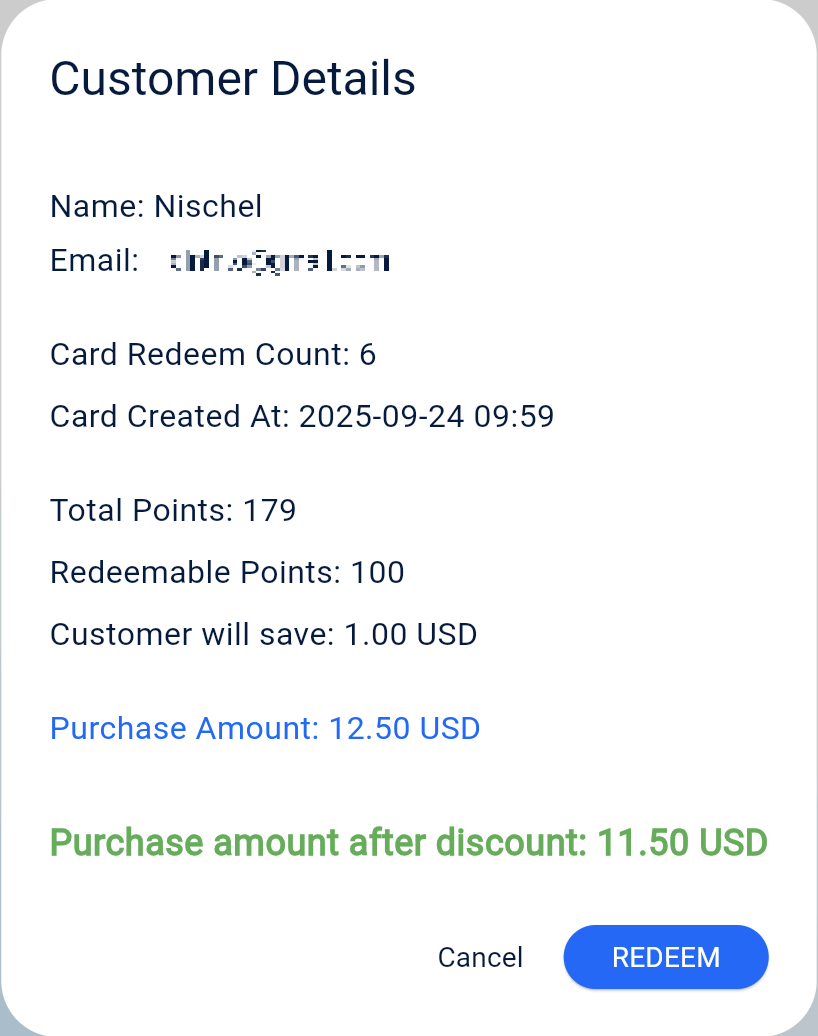
To redeem points: Enter the purchase amount in the webapp. The webapp will calculate the redeemable points and show you the discounted amount. You must then manually enter this discounted price into your billing software.
Point data is saved on the server, so an active internet connection is required.
MAIN PAGE
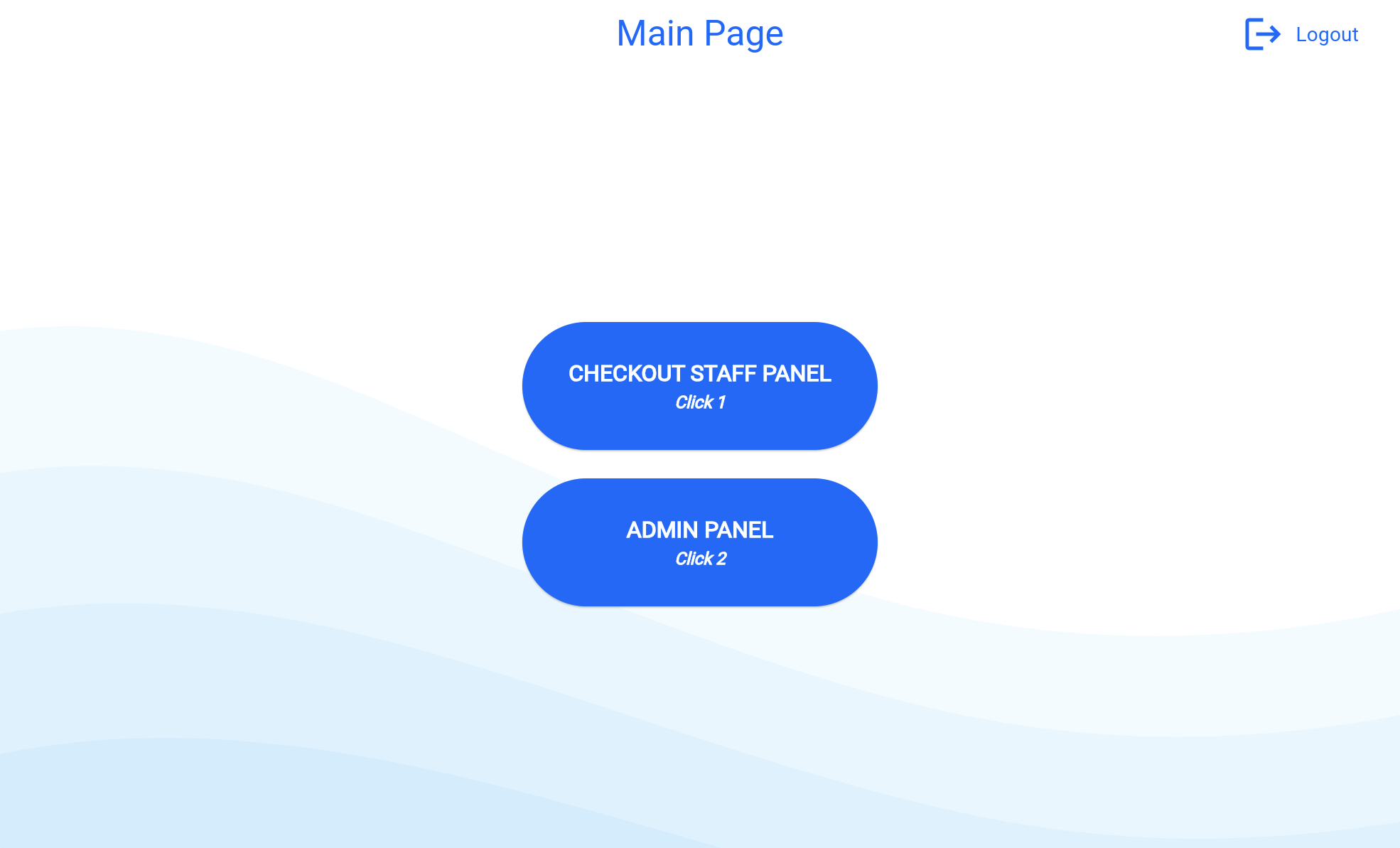
The Main Page is the first screen displayed after a successful Admin or Checkout Staff login. It has two buttons: “CHECKOUT STAFF PANEL” and “ADMIN PANEL.”
CHECKOUT STAFF PANEL: This panel can be assigned to each checkout staff member with a unique panel name and password. Checkout staff can:
Add points
Redeem points
Add new customers to the program
Edit existing customer details (after verifying the customer’s email address)
The number of checkout staff panels depends on the quantity selected during subscription by the Admin.
ADMIN PANEL: The Admin Panel should only be accessed by the Admin or Head of Department. The Admin has full rights to manage:
Checkout Staff Panels
Subscription
Point Management
Critical Settings
Authority-related tasks
ADMIN PANEL
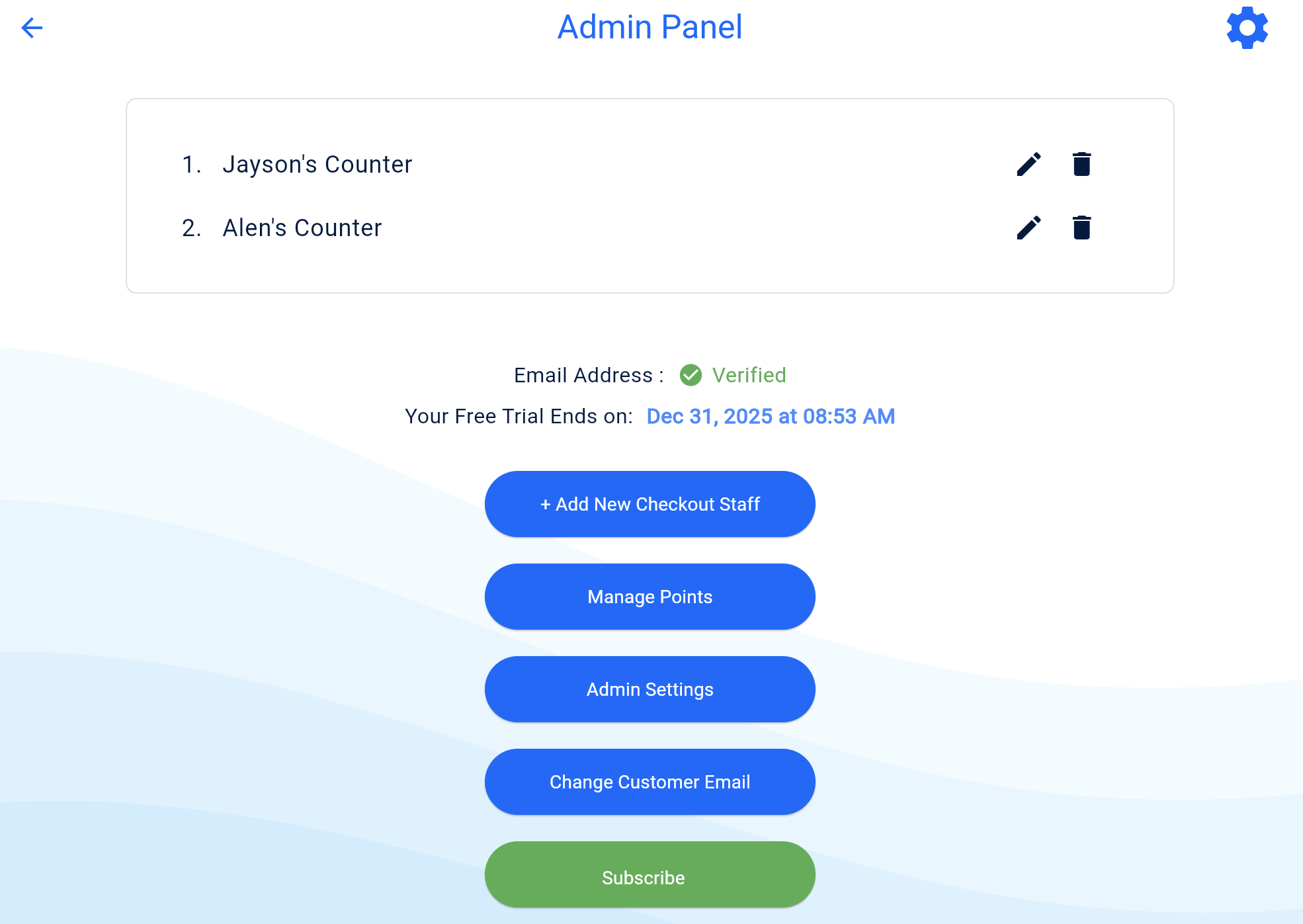
After successful Admin verification, the Admin Panel opens. Only the Admin or Head of Department has access to perform critical tasks, such as:
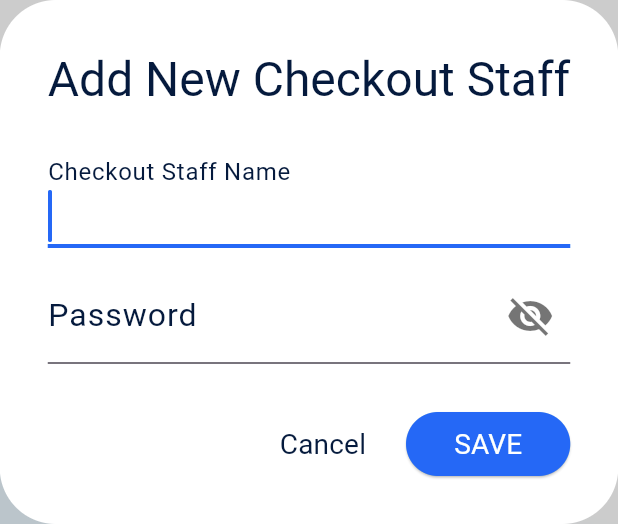
Add New Checkout Staff: By clicking “+ Add New Checkout Staff,” the Admin can add new staff members. They will appear in the list above the button. The Admin can also edit or delete staff later.
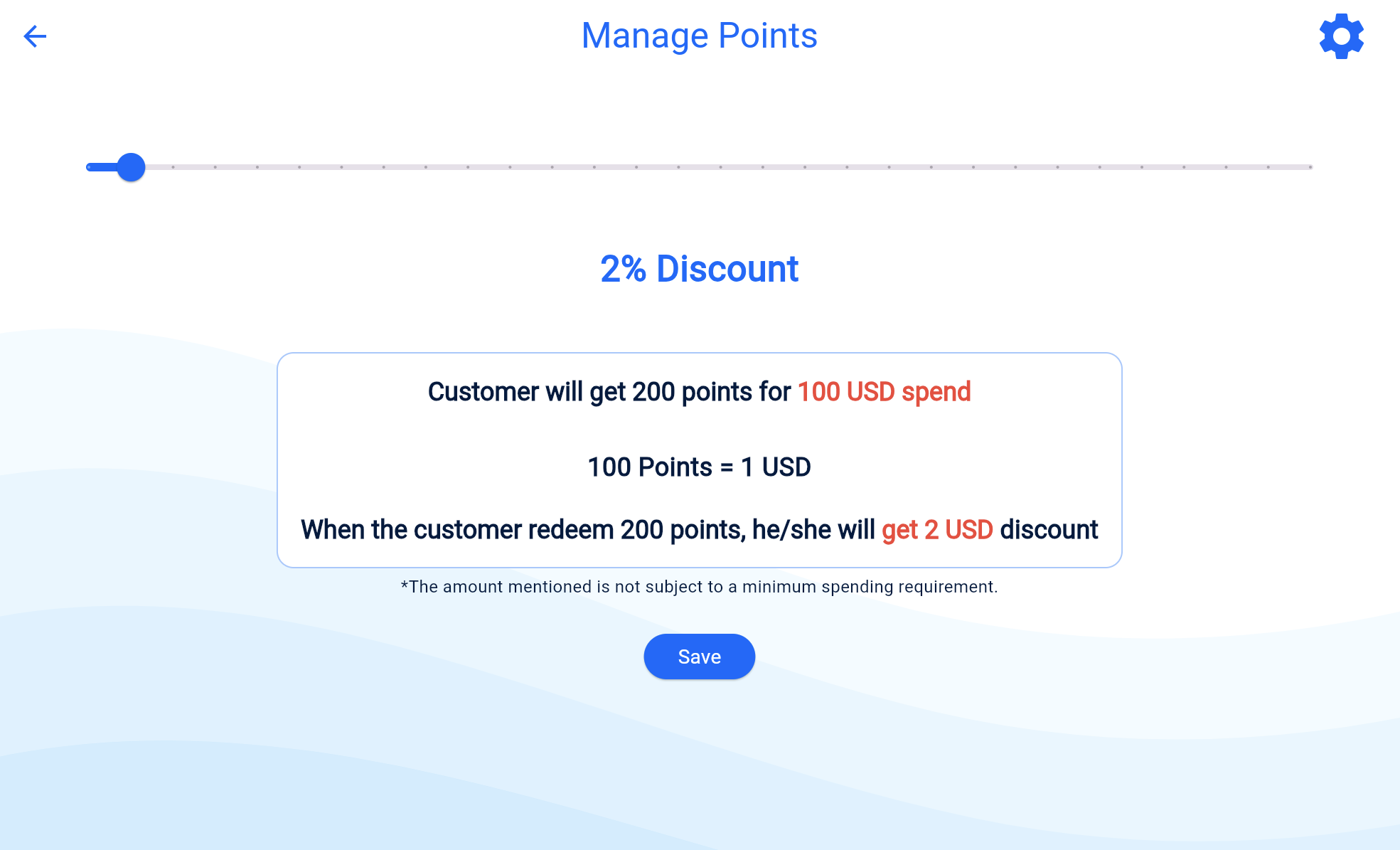
Manage Points: By clicking “Manage Points,” the Admin can adjust point settings, e.g., set the discount percentage. The system calculates customer points based on this percentage and their purchase amount.
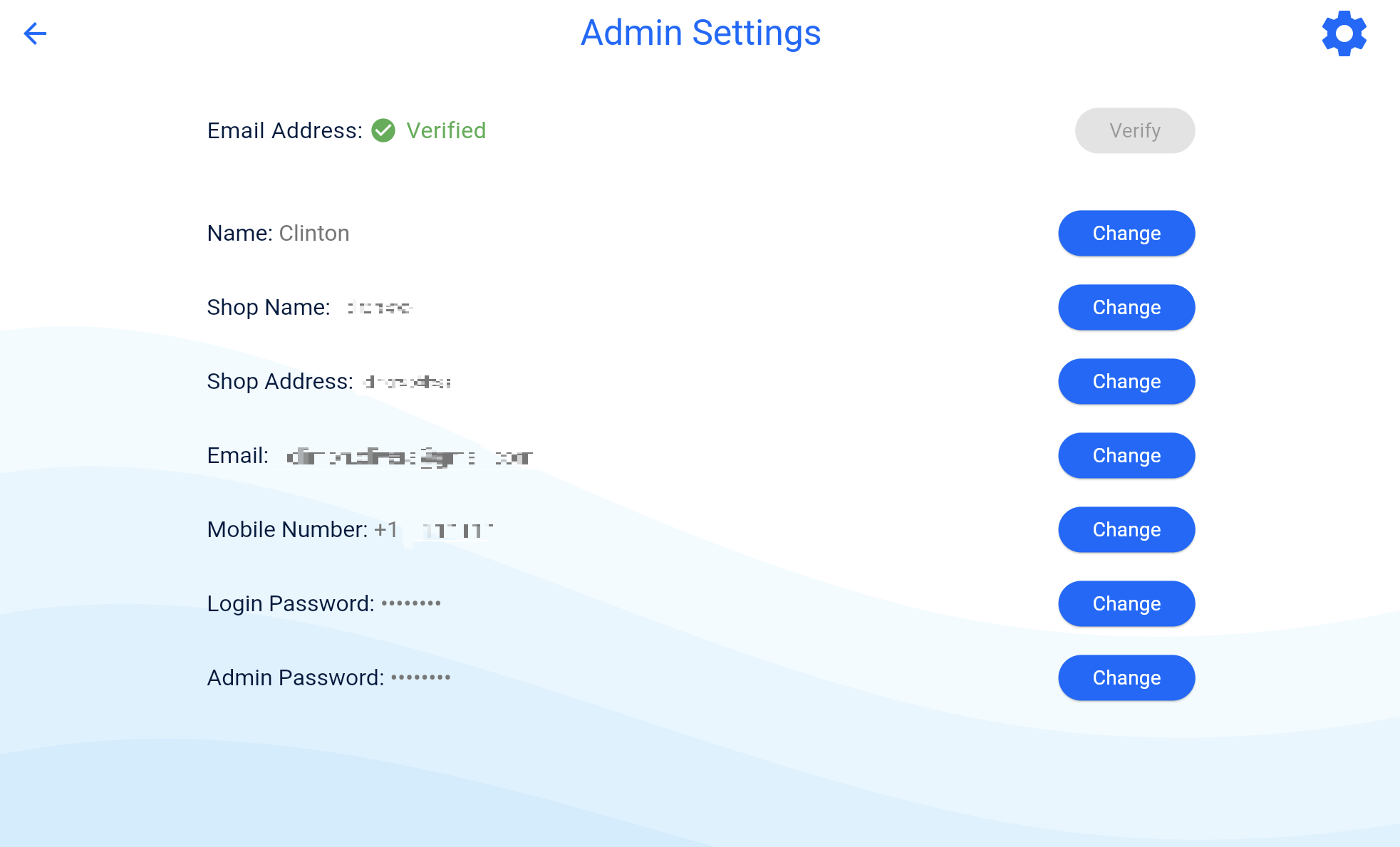
Admin Settings: Here, the Admin can verify their email, edit account details, and update passwords.
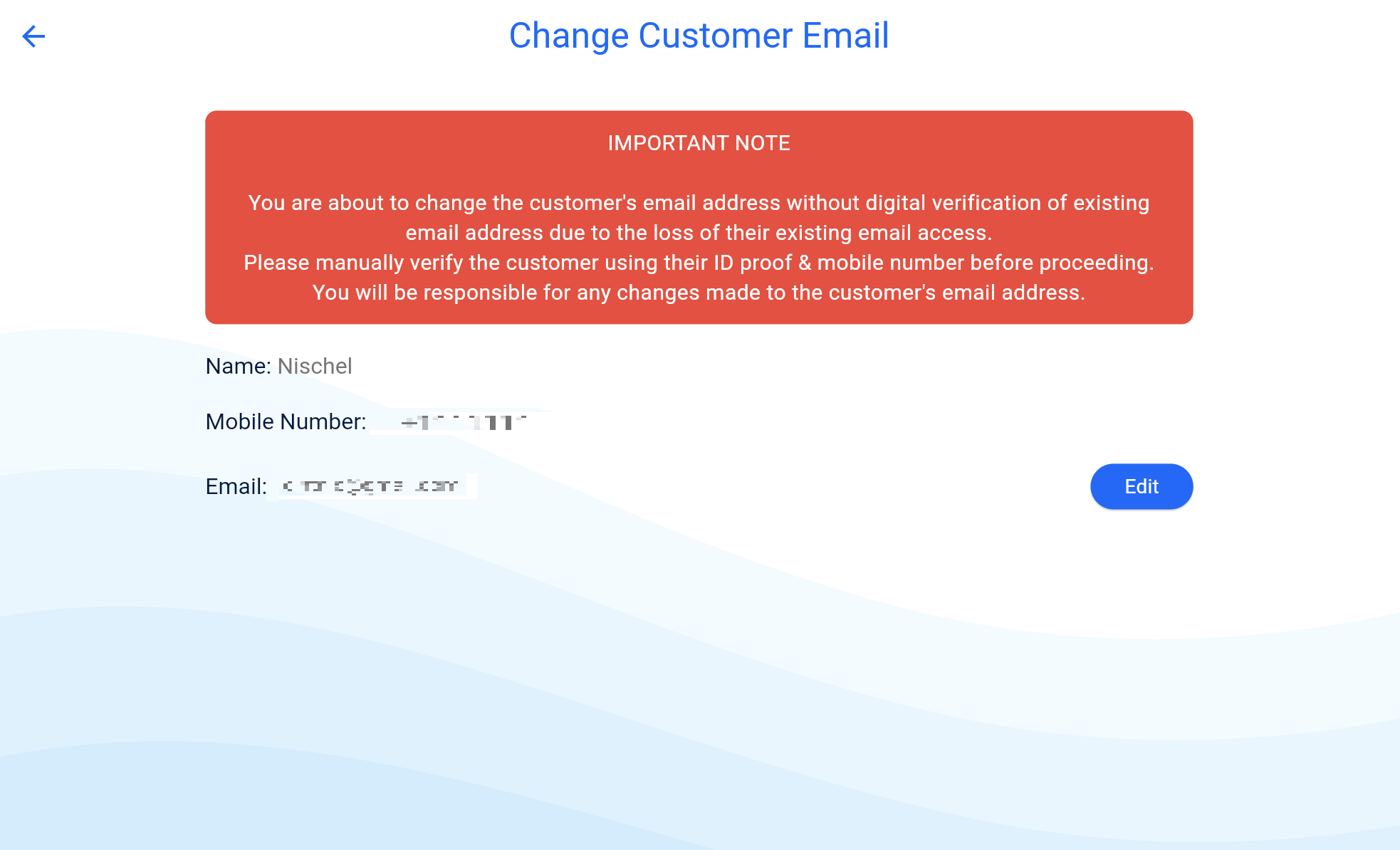
Change Customer Email: The Admin has the special authority to change a customer’s email address even if the customer has lost access to their registered email. This does not require email verification.
Subscribe: The Admin can subscribe to the product or manage the existing subscription.
CHECKOUT STAFF PANEL
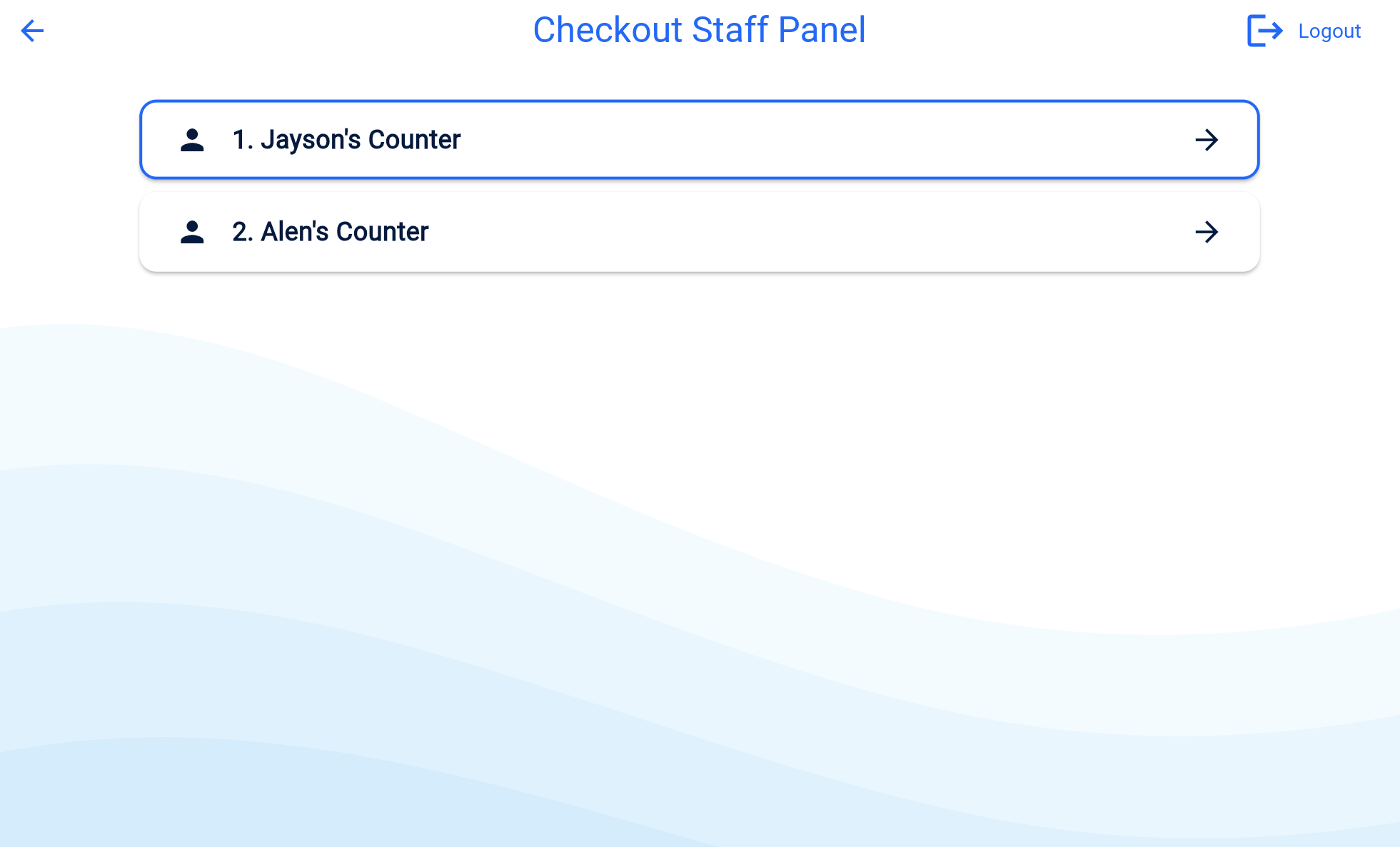
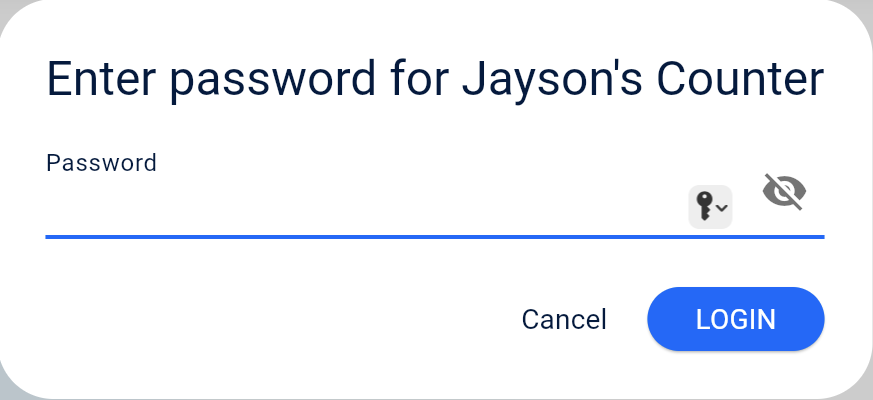
Clicking “CHECKOUT STAFF PANEL” takes the user to the staff list page, where staff must select their panel and enter their password to access the Dashboard.
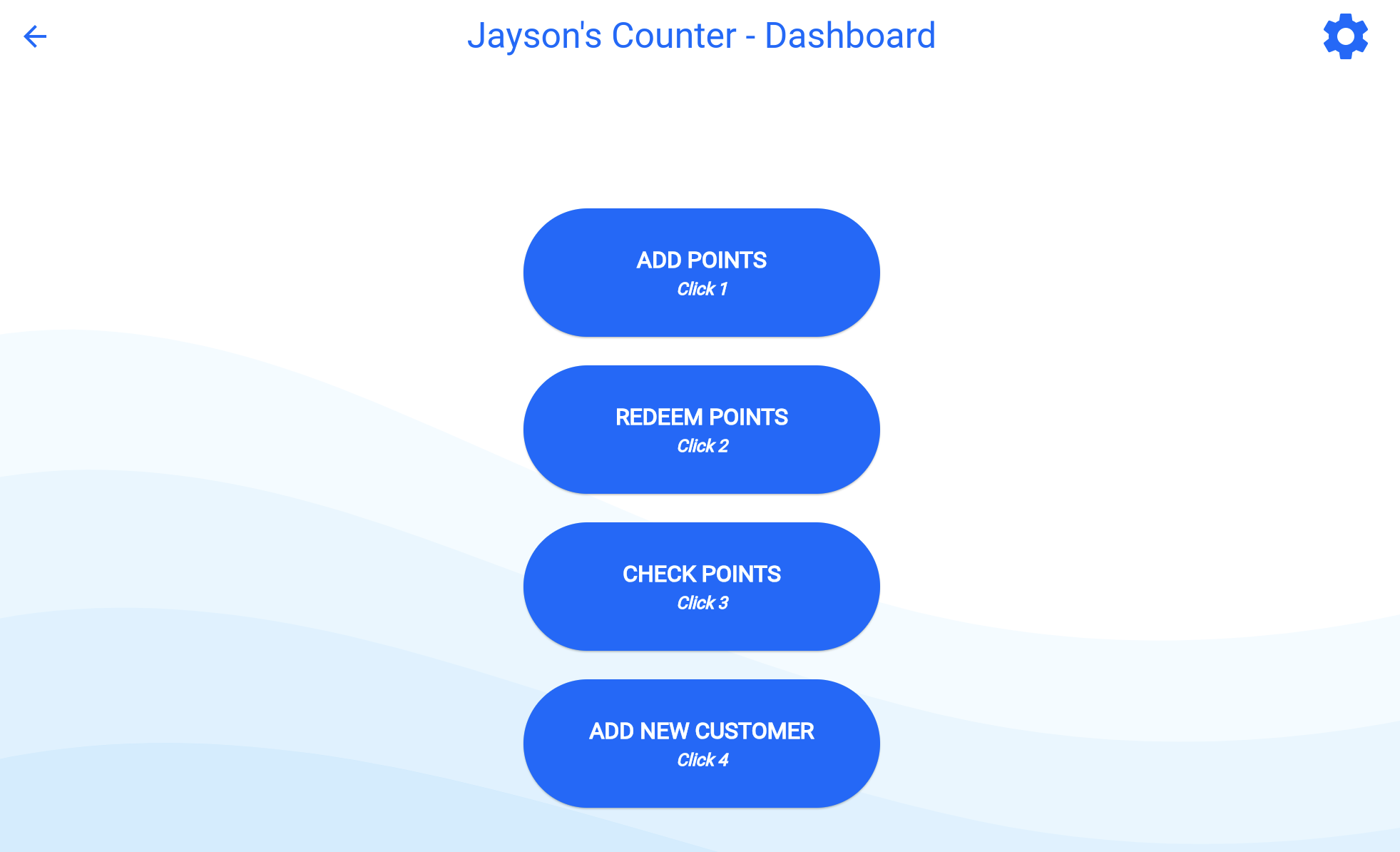
Dashboard
The Dashboard allows checkout staff to:
Add points
Redeem points
Check customer points
Add new customers
Edit existing customer details in settings page
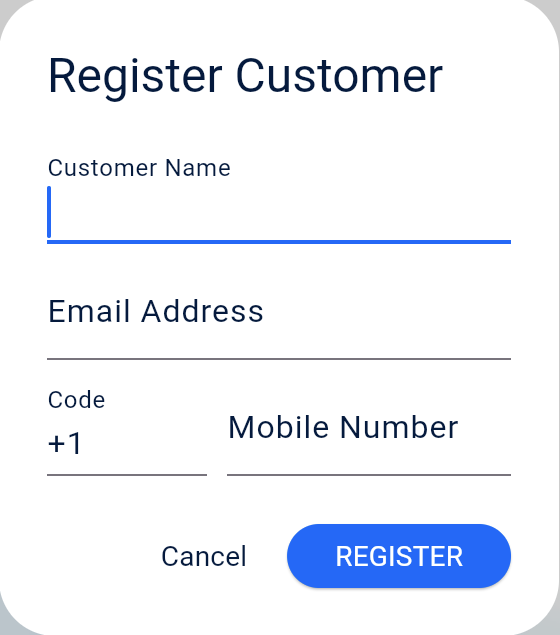
ADD NEW CUSTOMER
Staff can register a new customer by entering Name, Email, and Mobile Number.
Customers must verify their email within 12 hours of registration.
After verification, the customer receives a digital card at their registered email.
This card can be used 10 times for redemption. After 10 uses, a new card will be automatically sent.
If a customer loses their card, they can request a new one, which will be sent immediately to their registered email.
ADD POINTS
When a registered customer makes a purchase:
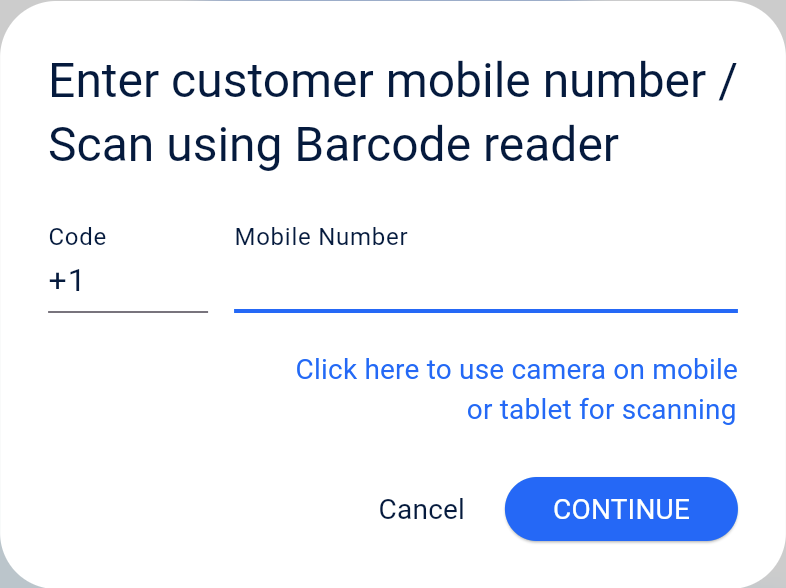
Enter their mobile number or scan the barcode sent during registration.
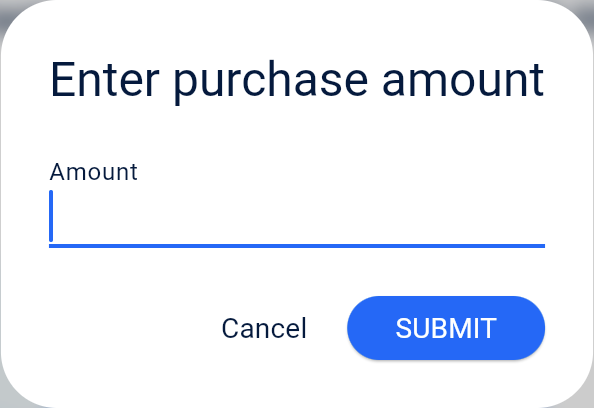
Enter the purchase amount. The system will calculate points based on admin settings and save them to the customer’s profile on the server.
If the customer is not registered, inform them about the program and encourage registration.
REDEEM POINTS
Customers can redeem points if they have reached the minimum threshold. Steps:
Enter the customer’s mobile number or scan the barcode.
Enter the purchase amount and click “SUBMIT.”
The system will show redeemable points and discount amount.
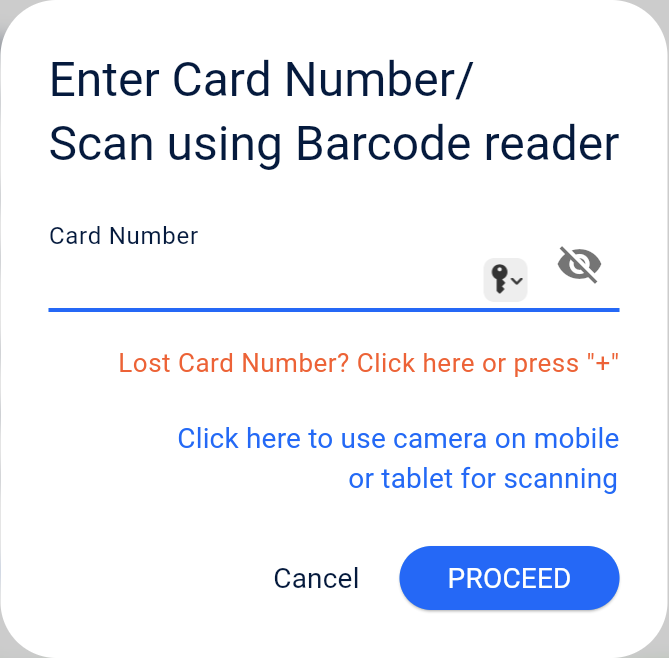
The customer must then provide their digital card number or scan the barcode.
On successful verification, points are redeemed from the server.
Finally, enter the discounted price manually into your billing software and finalize the bill.
CHECK POINTS
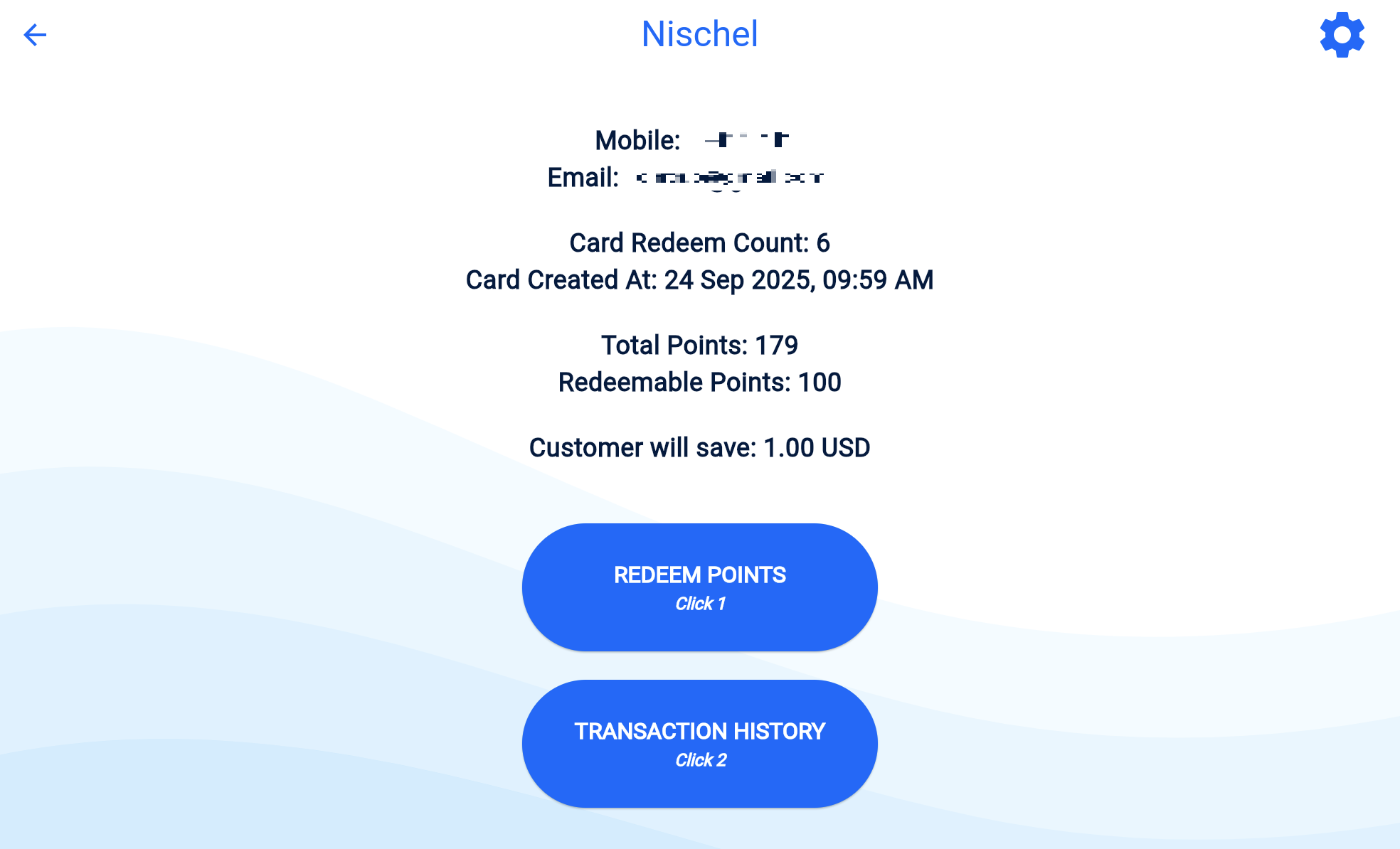
Customers can check their earned points by providing their mobile number or scanning the barcode.
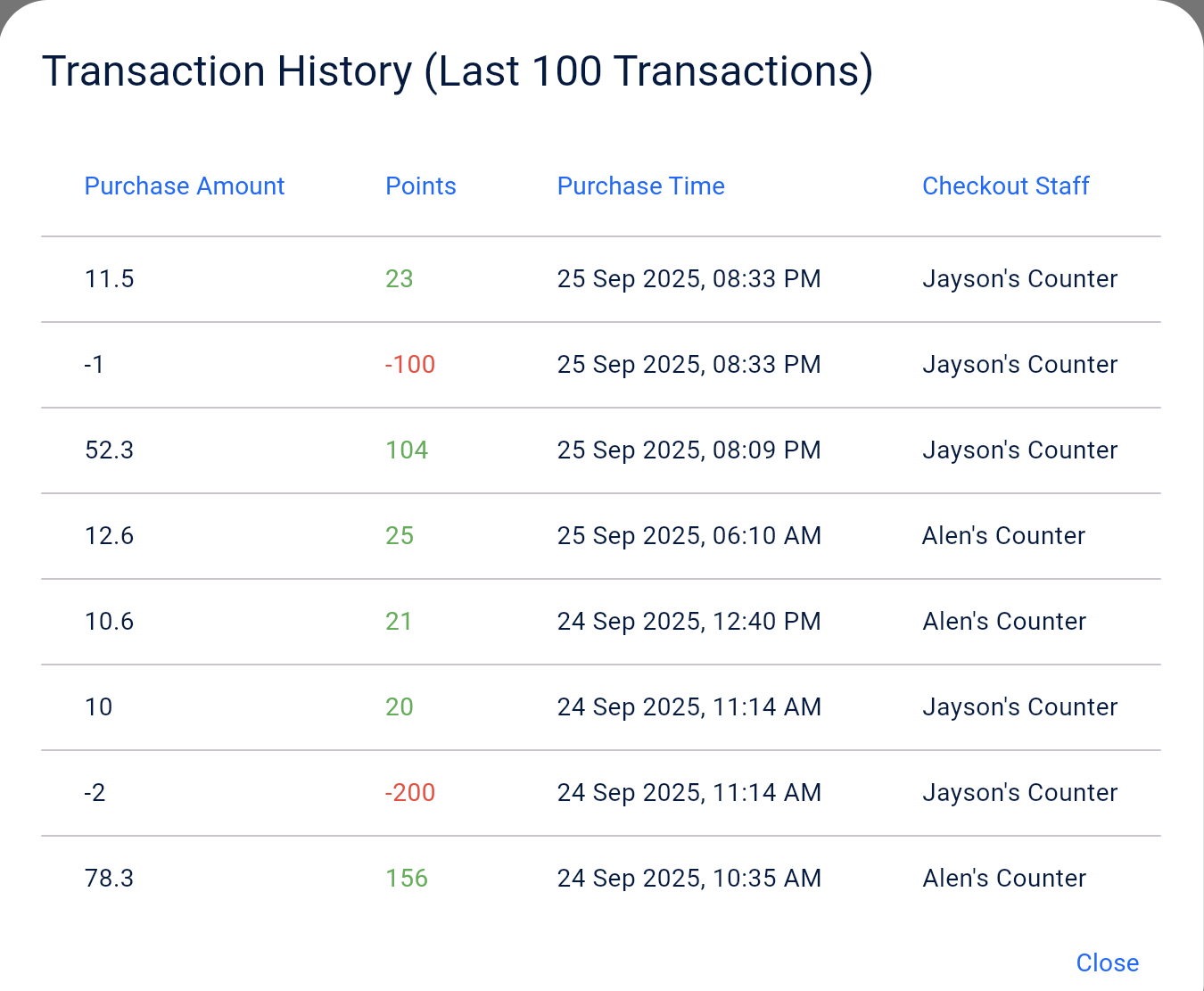
The system also shows the customer’s last 100 transactions.
From this screen, points can also be redeemed (similar to the Redeem Points process).
EDIT CUSTOMER DETAILS
Checkout staff can edit customer details (Name, Email, Mobile Number) via the “Edit Customer Details” option in the settings.
Change Name / Phone Number: Requires OTP verification sent to the customer’s registered email.
Change Email Address: Requires OTP verification sent to both the existing and new email addresses.
If the customer no longer has access to their old email, only the Admin can update the email address after manually verifying the customer’s identity.